Live Connect Datasets
Live Connect datasets enable real-time analytics by connecting directly to external data sources. Unlike managed or base datasets, Live Connect datasets do not store data in Qrvey; instead, queries are executed live against the source each time analytics are run.
Supported databases:
- Snowflake
- Redshift
- PostgreSQL
- Databricks
- MySQL 8.0+
- SQL Server
Why Use Live Connect Datasets?
Live Connect Datasets are ideal when you need:
- Immediate up-to-date, real-time data availability for analytics and dashboards.
- To avoid storing sensitive or large volumes of data in Qrvey.
- To eliminate data duplication.
- Direct access to external databases.
Key Features
- Real-time data access - Queries run live against external sources. No data is stored in Qrvey.
- Broad source support - Connects to most major databases.
- Always current - Dashboards and analytics reflect the latest data from the source.
- No data duplication - Ideal for sensitive or large datasets where storage in Qrvey is not needed.
- Compliance friendly - Supports data residency and compliance requirements by keeping data at the source.
- Simplified integration - Can be used in dashboards and reports for real-time analytics.
- Simplified Setup - Simple connection and configuration process.
Use Case
Real-time dashboards and always-fresh reporting.
Create a Live Connect Dataset
To create a new Live Connect dataset, follow these steps.
-
Select New Dataset.
-
Select the Live Connect option from the Data tab.
Any existing connections which support Live Connect are listed as possible data sources. -
Select a connection:
- Select an existing connection from the list.
- Select Create New Connection at the bottom of the window. This method, rather than going through the Connections tab, limits source selections to those supporting Live Connect.
-
Select Next.
-
Select a database.
For some sources, you must select a schema from a list of tables or views. Alternatively, you can write a SQL query to perform joins and formulas. -
Select Save after the data source is selected or the custom query is written and tested. You return to the main Datasets page.
Change the Data Source

Select the options (three-dot) menu on the data source pill and then select one of the following options:
- Edit Connection Settings - Modify the properties of the connection without opening the Connections page.
- Edit Query - Select a different table or view from the same connection or change the source SQL query.
- Switch for Another Data Source - Select a data source from a connection other than the one currently in use.
- Rename - Give your data sources an alias or more user-friendly name.
Change Dataset Columns
Changing the columns in the Live Connect dataset does not change the query executed for the dataset. It impacts the presentation layer only. Data types are inherited from the source database. To make changes to data types, change the source object or use the SQL Query option with CAST or CONVERT syntax as appropriate for your source.

- Show/Hide Columns — Disable the checkbox to the left of the column. When disabled, the column is unavailable in any widget, including charts, metrics, and tables.
- Rename Columns — Provide user-friendly, descriptive names for use in Qrvey widgets.
- Change Geolocation — Select Change Geolocation to map columns to addresses for map charts.
- Visualization Format — You can change the default display format for numeric and date columns.
Select the Visualization Format
The system automatically selects a format for displaying date and numeric data in visualizations. While you can change this default format each time you create a chart, you can also select a different format for the display at design time. For example, if a numeric data column contains currency data, you might consider using a Currency format, which adds the currency symbol prefix and formats the number with two decimal places.

Note: For DateTime columns, you can select a default format or enter a custom format directly in the field.

Automatic Column Links
Any dataset column can be configured to automatically generate a link to a selected URL when used in a visualization. A common use case involves a column that contains a location that needs to link to a map site, showing the location on the map. For more information, see Column Links.
Configure Geolocation Groups
The Geolocation Groups feature displays address information in map charts.
Use Formula Builder with Live Connect Datasets
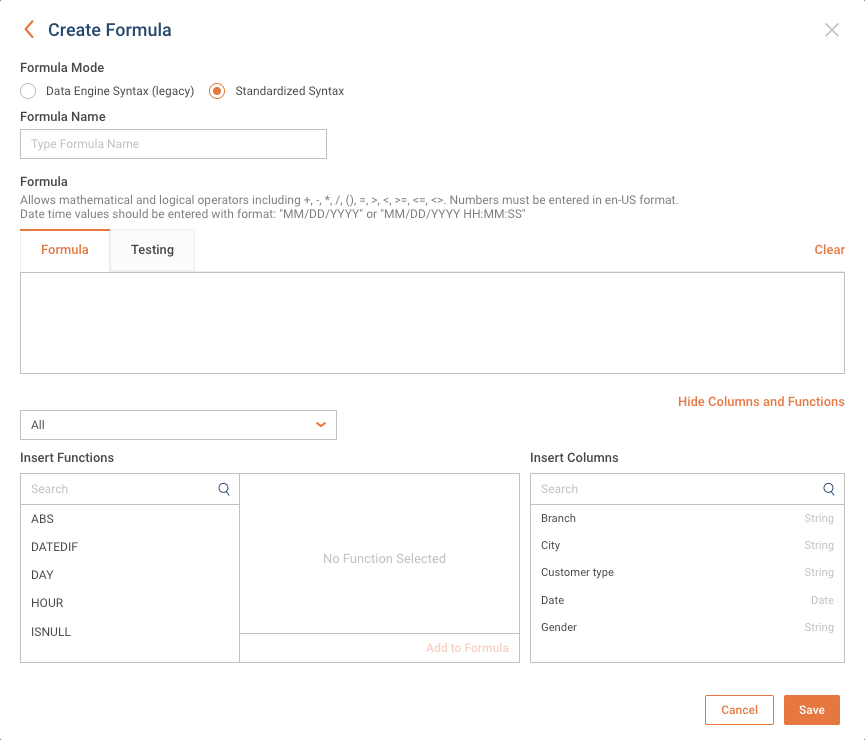
Formula Builder provides the following modes for creating formulas:
- Standardized Syntax — This common mode enables you to create formulas using a standardized syntax that is compatible with any database connected to the Qrvey platform.
- Data Engine Syntax (Advanced) — Uses the specific syntax of the database.
Optimize Live Connect Configuration
The performance of your live connection can vary depending on the size of the dataset and the size of the database cluster. Performance issues can occur if the database cluster is not sized appropriately for the dataset. Qrvey recommends that your Live Connect data source returns results in 30 seconds or less to prevent timeout errors.
To ensure optimal performance, scale the infrastructure of your live connect data source:
- Load a smaller dataset, if possible.
- Increase the database cluster.
- Increase the query timeout of your database engine.
Limitations and Considerations
- Performance depends on the speed and availability of the external data source.
- Some advanced features (for example, transformations, calculated fields) can be limited or unavailable.
- Data is not stored in Qrvey. Historical analysis or snapshots requires a managed dataset.
- Not all data sources or query types are supported.
- Live Connect datasets cannot be used as sources for base datasets.
- Data views cannot be created from Live Connect datasets.