Dynamic Labels
Qrvey supports a process for displaying text in any number of languages.
Text Usage in Qrvey
The Qrvey platform supports text in the following context:
- Static Text is built into the Qrvey product pages, and is represented in titles, labels, tooltips, buttons, and menus.
- Dynamic Text is the user-defined text entered into Qrvey Composer, such as dataset names and dataset column names.
Translated values are stored in a Google spreadsheet. Each text segment is mapped to a unique key, and each key includes translated values for each supported language. For more information, see the Translation Spreadsheet section in Internationalization, Step By Step.
User interface components that use static text are known to the system. For example, the Dashboard toolbar contains a button labeled Publish Page In the Translaton Spreadsheet, you can find a toolbar.publish_page.label key defined in the pagebuilder domain, with its original source value set to Publish Page.
Dynamic text, such as dataset names and their column aliases, can vary between instances. This prevents keys from being defined in the system. Keys must be configured by the primary users.
Set i18n Tokens for Datasets
Use the following procedure to enable translations for dataset names and column aliases in Qrvey Composer.
-
Open the dataset in the Dataset Design step in Qrvey Composer.
-
Select the three-dot menu in the upper-right corner of the screen.
-
Enable Label Internationalization.
Enabling this option adds the dataset name and column alias keys to the Translation Spreadsheet and uses the current names as the original source values.

-
Select the toggle in the upper-right corner of the screen and switch it to view.
This view displays the assigned i18n tokens for the dataset name and column aliases.
-
Review the suggested tokens.
Tokens are generated from the current names. For example, a column named
ageis assigned the token{{i18n.age}}. -
Update a token if needed.
Select a field and edit the
keyportion of the token. If a similar token already exists, the system suggests matching tokens that you can reuse. -
Apply your dataset changes.
-
Complete steps 3 through 6 in Internationalization, Step By Step to add new keys to the Translation Spreadsheet, translate the values, and publish them for runtime use.
Set i18n Tokens For Filter Controls
Qrvey supports dynamic text tokens in the dashboard Filter Controls (Date picker, Multi-select list, and Input box) in Qrvey Composer. You can enable translations for the Name, Hint, and Button Text properties in the filter controls.
After Internationalization has been configured in the Qrvey platform:
-
Select the Show Internationalization Labels option in the Common Settings panel of the filter control.
-
Select one or more tokens. Type
{{in the Label, Hint, or Button Text input fields to display available i18n tokens.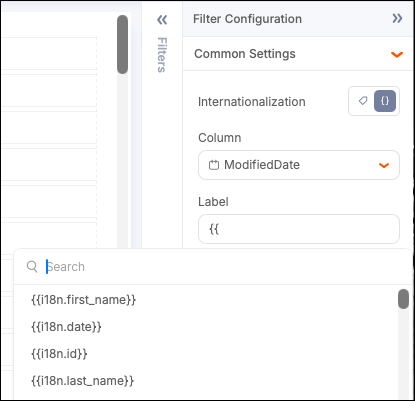
-
Configure your widget to display translated values. For more information, see Configure Qrvey Widgets for Internationalization in Internationalization, Step By Step.
Set i18n Tokens in Formula Builder
Qrvey supports dynamic text tokens in the Formula Builder in Qrvey Composer. You can enable translations for the Name in Standard and Advanced formulas as well as Aggregate formulas.
After Internationalization has been configured in the Qrvey platform:
-
Select the Show Internationalization Labels option next to the Formula Name in the Formula Builder.
Note: Providing the default Formula Name is mandatory before saving dynamic labels. Select Show Default Labels and provide the default static name for your formula.
-
Select one or more tokens. Type
{{in the Formula Name field to display available i18n tokens.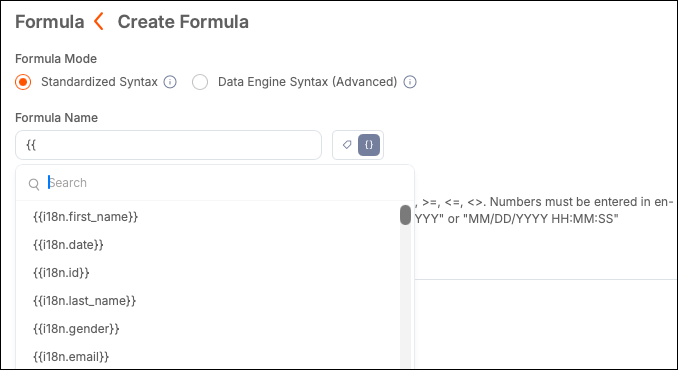
-
Configure your widget to display translated values. For more information, see Configure Qrvey Widgets for Internationalization in Internationalization, Step By Step.