Manage Themes from the Analyze Tab
In the Analyze tab of a dataset, you can use the Theme Gallery to create and manage themes in your application.
Default Themes
Qrvey provides the following default themes:
- Qrvey Theme - Legacy default theme.
- Qrvey Theme 2 - Expands the number of colors provided in the Data Visualization section from 20 to 100.
- Qrvey Dark Theme - Applies a dark mode to the dashboards.
Create a Theme
Use the Theme Gallery to create themes to apply to dashboards and charts.
-
In Composer, go to Datasets > Analyze.
-
From the toolbar, select the Theme Gallery icon to display a set of existing themes.

-
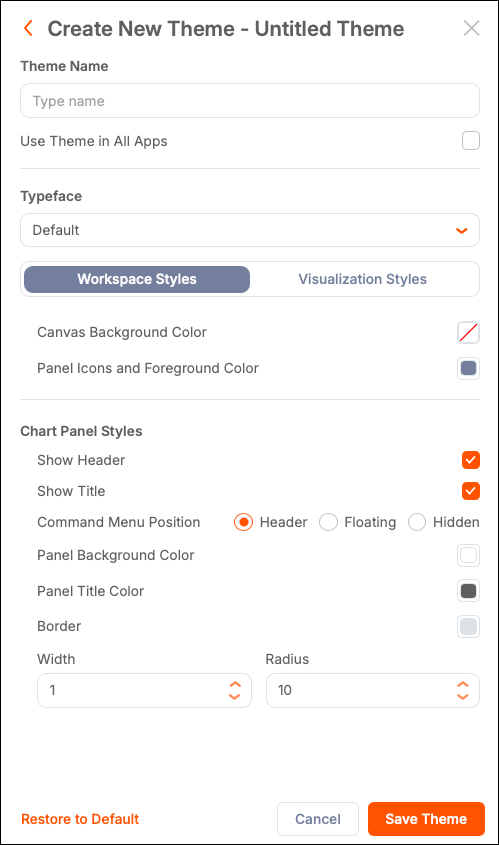
Select Create New Theme to open a modal.
-
Add a name for the theme.
-
(Optional) Select Use Theme in All Apps to apply the theme across your applications.
-
From the Typeface dropdown, select a font to use in the application.
Note: To use CSS to modify the typeface, select (Default). For more information, see Customize Widgets Using CSS.
-
Modify styles under the Workspace Styles tab.
a. Select the following colors:
- Canvas Background Color
- Panel Icons and Foreground Color
b. Modify Chart Panel Styles.
- Show Header - Select to remove the header from the chart panel.
- Show Title - Select to hide the title in the chart panel.
- Command Menu Position - Select where the menu command options (self-service options, downloads, chart filters, others) for the chart panel are displayed: header (default), floating menu, or hidden.
- Panel Background Color - Select the box next to Panel Background Color to display a color picker.
- Panel Title Color - Select the box to display a color picker and set the color of the chart title.
- Border - Select a line width and radius. You can also select the border color.
-
Modify styles under the Visualization Styles tab.
a. Under Text Styles, select the box next to each text item to display the color picker dialog.
- Axis and Data Labels
- Values
- Legends
- Tooltips
b. Under Data Styles, select the following options:
- Main Color - Set the main color for the data.
- Data Visualizations - The system randomly selects 100. You can change any of the colors individually, or you can select Generate New to randomly generate a new set.
c. Under Table Header Styles, select the following options:
- Select the box next to each option (Header Font Color, Header BG Color) to display the color picker. Use the options provided to set a color for that text item.
- By default, Data Type Icons are displayed in the table header. Disable this option to hide these icons.
-
Select Save Theme. The gallery updates to display the new theme.
Edit a Theme
You can edit a theme from the Dataset Analyze tab or from a legacy Dashboard. You can then apply the theme to its associated charts.
- From the Theme Gallery, select Edit from a theme's options menu.
- Modify the theme settings as needed.
- Select Save Theme to save your changes.
Duplicate a Theme
From the Theme Gallery, select Duplicate from a theme's options menu. The new theme displays in the Style Themes modal. You can edit, duplicate, or delete the theme as needed.
Delete a Theme
In a shared application, a theme created by someone else can only be deleted by the owner of the application. The options menu does not display a Delete entry for other users.
To delete a theme, from the Theme Gallery, select Delete from a theme's options menu.
Reset Themes to Default Settings
To revert all themes within an application to default, edit the theme and select the Restore to Default link.
Caution: This action cannot be reversed.
Apply Themes Across Applications
To quickly apply a new or modified theme across applications, select Use in all applications link from the options (three-dot) menu in the panel. This action applies the theme independently of the application owner. To undo this action, edit the theme and disable Use Theme in All Apps.
Access a Theme Programmatically
Embedded widgets support the use of CSS variables to customize the visual theme. For more information, see Customize Widgets Using CSS.
Each theme has a unique ID that can be used for accessing the theme programmatically. The theme ID is displayed in the list of themes. Developers can copy and paste the theme ID into the embedded widget JSON configuration code.