Floating Menu
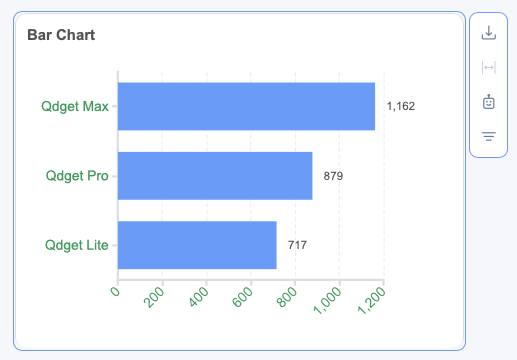
The Floating Menu functionality provides flexible options for displaying chart options and controls. Instead of always showing chart options in the header (which requires the header to be visible), users can display options in a floating menu that appears only when a chart is selected or hovered over. This enables cleaner dashboard layouts while maintaining full access to chart functionality.
Overview
By default, chart options are displayed on the chart's header and are always visible. This prevents customers who prefer to remove the chart's header for a different layout from doing so without losing access to the chart's options.
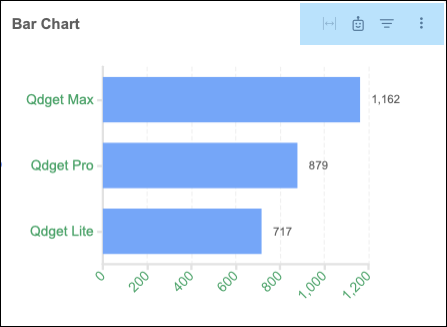
The floating menu feature addresses this limitation by providing implementers with the option to decide how to display chart options:
- Header Mode (default) - Options displayed in the chart's header.
- Floating Mode - Options displayed in a floating menu visible on hover/selection.
- Hidden Mode - All options hidden.
Key Requirements
Menu Display Configuration
Users can use the following options to configure the chart menu display:
- Theme Configuration - Set globally for the entire application. For more information see Manage Themes from the Analyze Tab.
- Chart Panel Configuration - Override theme settings for the specific chart.
- Widget Configuration - Override theme settings in embedded scenarios. For more information, see Dashboard Widget.
- Customization Keys - Fine-tune specific options using customization keys. For more information, see Customize Widgets Using CSS.
Floating Menu Behavior
When the floating menu is enabled, it includes the following characteristics:
- Menu appears on chart hover or selection.
- Contains all available chart options with tooltips.
- Only the chart name is displayed in the header (if header is visible).
- Menu positioning adapts to available space.
Each option functions identically to the header version.
Available Options
The floating menu options availability depends on which options are enabled and whether the dashboard is in Design or Interact mode. Options can include:
- Edit chart
- Duplicate chart
- Embed chart
- Download (JPG, PDF, CSV, CSV with summaries, Excel)
- Fit to panel
- Sorting
- Column settings (replacement, aggregation, selection, section, grouping)
- Chart selection
- Select columns
- Filters
- Size
- Date grouping options
Hierarchy
- If Command Menu Position is set, it overwrites theme configuration.
- If Command Menu Position is set to "Header" but the theme has "Show Header" disabled, the header menu is displayed.
- If Command Menu Position is set to "Header" but showHeader is set to
false, Command Menu Position switches to “Floating” automatically.
Legacy Dashboards
The floating menu is configured in legacy dashboards using themes. In widgets, menu_layout settings in the feature_permission object take precedence over the theme’s settings. For more information, see Feature Permissions in Dashboard Builder Widget (Legacy.